Before your first conversation
Start with a free ChatGPT account
Follow the pictures to find sign-up. Then return to your lesson. Already have an account? Use Log in and the method you normally use.
Keep your Spinnit lesson tab open. These pictures were captured on . Your wording or layout may differ. Use the written directions as well as the pictures.
1. Open the official website
Listen to this sectionHeart · AI narration · 42 seconds
Press play when you are ready. You can pause or replay any part.
Read the narration transcript
Keep your Spinnit lesson tab open while you set up Chat GPT. Use the Open Chat GPT button in this guide. You do not need to install an app for this lesson. On the computer picture, look for Sign up for free in the upper right. On the narrow browser picture, the button says Log in. It opens a window called Log in or sign up, so a new user can begin there too. Already have an account? Use Log in and the method you normally use. If a cookie notice appears, choose the privacy option you prefer. These are pictures of the website as checked in September twenty twenty-six. Your screen may look different. Use the written directions as well as the pictures.
Use the button above, or type chatgpt.com into your browser's address bar. You do not need to install an app for this lesson. If a cookie notice appears, choose the privacy option you prefer.
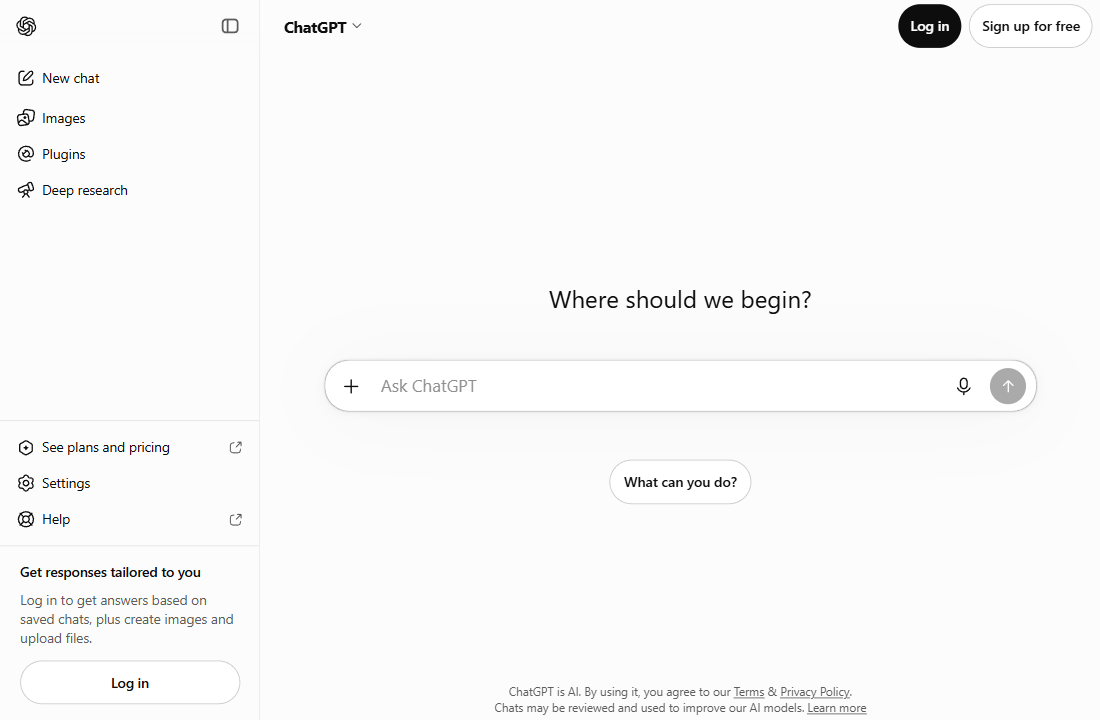
On the computer screen below, Sign up for free is in the upper-right corner. Choose it to begin.
On a phone or a narrow screen?
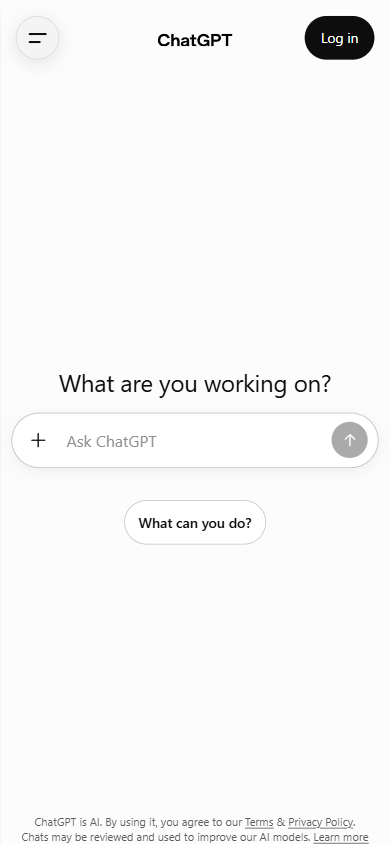
The narrow browser view we checked shows Log in at the top right. Selecting it opens Log in or sign up, so you can begin there too.
2. Choose one way to sign in
Listen to this sectionHeart · AI narration · 43 seconds
Press play when you are ready. You can pause or replay any part.
Read the narration transcript
Choose one way to sign in. The window we checked offers Google, Apple, phone and email. Use a method you can access again. For email, enter your email address and choose Continue. For Google or Apple, choose the matching button and follow that provider's instructions. If you prefer the phone option and it is available, follow the instructions shown. Complete any checks privately. If asked for a code or password, enter it on the sign-in screen. Never put it into Spinnit, an AI conversation, or a message to someone helping you. Our pictures stop before these private steps. They do not show a completed registration. Later screens depend on the method you choose.
The window we checked offers Google, Apple, phone and email. Choose a method you can use again. You only need one.
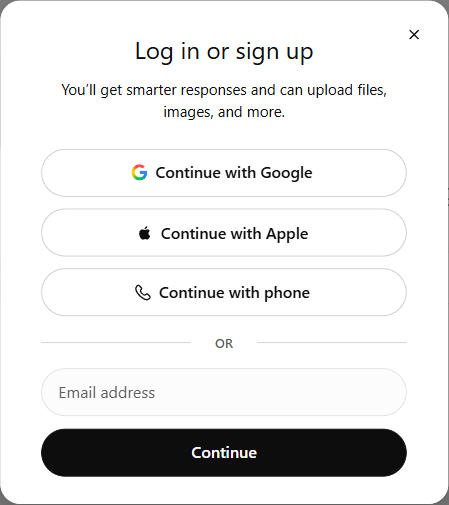
- Email: enter an address you can access, then choose Continue.
- An existing Google or Apple account: choose its button and follow that provider's sign-in instructions.
- Phone: follow the instructions shown if this is your preferred available option.
Complete the checks shown for your chosen method. If asked to confirm a code or create a password, do that privately on the sign-in screen. Do not type it into Spinnit, an AI conversation or a message to someone helping you.
These pictures stop before the private account steps. They do not show a completed registration. Later screens depend on the method you choose.
3. Return to your lesson when you can type
Listen to this sectionHeart · AI narration · 31 seconds
Press play when you are ready. You can pause or replay any part.
Read the narration transcript
When you can find the message box, you are ready to return to the lesson. If Chat GPT offers a choice between Chat and Work, choose Chat for this conversation exercise. This course does not require a paid subscription. If you reach a paid-plan or payment screen, go back and look for the free route. Do not enter payment details just to complete this lesson. Switch back to your original Spinnit lesson tab. If setup takes longer than expected, take a break. You can return later.
Look for the message box. If you are offered Chat and Work, choose Chat for this conversation exercise. The official ChatGPT quickstart explains these choices.
This course does not require a paid subscription. If you land on a paid-plan or payment screen, go back and look for the free route. Do not enter payment details just to complete this lesson.
Once you can find the message box, switch back to your Spinnit lesson tab. If setup is taking longer than expected, take a break and return later.
If a usage-limit message appears
Listen to this sectionHeart · AI narration · 49 seconds
Press play when you are ready. You can pause or replay any part.
Read the narration transcript
If a usage-limit message appears, you have not failed the lesson. Read the notice on your own screen. First, look for what is limited: chatting or a particular feature. This lesson uses ordinary text messages. Next, look for what you can do. If a reset time is shown, note it and return then. If a free way to continue chatting is offered, you can use it. If you only see an upgrade offer, you can pause instead. Return to Spinnit and choose Remember my place on this device, or write down your step. Use Try this task later if needed, and tick only tasks you actually completed. We do not promise a fixed free-message allowance or reset time. A sign-in or connection error is different from a usage limit. Check the connection and website address, then try reloading or use Help on the official website.
You have not failed the lesson. Read the notice on your own ChatGPT screen before deciding what to do. This guide does not promise a fixed number of free messages or a reset time for your account.
- Look for what is limited. Read whether the notice refers to chatting or a particular feature. This lesson only asks you to write ordinary text messages.
- Look for the next available action. If a reset time is shown, note it and return then. If the screen offers a free way to continue chatting, you can use that. If it only offers an upgrade, you can pause instead.
- Keep your place. Return to Spinnit and choose “Remember my place on this device”, or write down the step. Choose “Try this task later” if needed. Tick a task only when you have actually done it.
An upgrade offer is a choice to consider later; it is not an instruction from this course to buy anything. Read our free-versus-paid guide before deciding.
What if the page shows an error instead?
A sign-in error, connection problem or blank page is not the same as a usage-limit notice. Check your connection and the website address, then try reloading. If you still need help, use the Help link on the official ChatGPT website and describe the error without sharing a password or verification code.
Ready to practise?
If your lesson is still open, switch back to that tab. Otherwise, use the link below. To resume a saved place, use the same browser and device.